Question: How to backup the footage from my 2MP DVR to a USB flash drive?
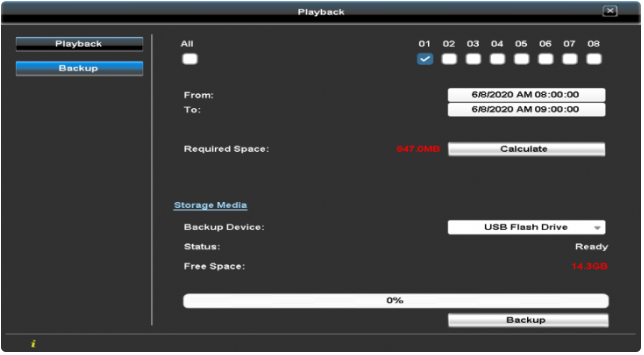
The backup file format is .m4v, which is supported by most video players. If needed, you can download the VLC Media Player or MPC-HC Player. Follow these steps to backup your footage:
Steps to Backup Footage:
Access the Backup Menu:
Go to the DVR Main Menu > Playback Menu > Backup option.
Select Channels:
Choose either All channels or a single channel. (Backing up one channel at a time is recommended.)
Set the Time Period:
Specify the time range From and To. Ensure the selected period contains recorded videos, which you can verify from the Playback option.
Calculate File Size:
Click the Calculate button to get the estimated file size.
Choose the Backup Device:
Select USB Flash Drive as the Backup Device. Insert your USB flash drive into the DVR USB slot.
Initiate Backup:
Once the device Status changes from Unplugged to Ready and the Free Space is displayed, click the Backup button at the bottom.
Wait for the progress bar to reach 100% to complete the backup.
Need Further Assistance?
For any additional questions, reach out to us at 323-315-0396, Monday to Friday, 9 am – 5 pm Pacific Time, or email service@tigersecu.com. We will respond within 12 hours.
Facebook
Twitter
Email
Print
Tigersecu
2 thoughts on “How do I back up the footage from my 2MP DVR to a USB flash drive?”
MICHAEL BELLO says:
Hello,
Tigersecu Model HD2MP
I tried 5 flash drives and none are seen by the DVR, including HDD section. We need to backup some footage.
Hi Michael,
The DVR only detects a USB with the FAT32 or NTFS format. If the DVR can’t recognize the USB flash drive, the USB may not be in the correct format. I’ve emailed you the instructions for formatting the USB to FAT32/NTFS. Can you check your email?
Thanks,
Customer Experience







2 thoughts on “How do I back up the footage from my 2MP DVR to a USB flash drive?”
Hello,
Tigersecu Model HD2MP
I tried 5 flash drives and none are seen by the DVR, including HDD section. We need to backup some footage.
https://www.tigersecu.com/how-do-i-back-up-the-footage-from-my-2mp-dvr-to-a-usb-flash-drive/
Hi Michael,
The DVR only detects a USB with the FAT32 or NTFS format. If the DVR can’t recognize the USB flash drive, the USB may not be in the correct format. I’ve emailed you the instructions for formatting the USB to FAT32/NTFS. Can you check your email?
Thanks,
Customer Experience